How to separate the pages of a PDF
Updated 10/14/2026
“Separating the pages of a PDF” can mean several things: getting just one page, removing the ones you don’t need, or cutting the document into several files. PDFRoll has a tool for each case. Here’s which one to choose, and how to use it.
Which tool should you choose?
- You want a single new PDF with a few pages: “Extract pages”.
- You want to keep the whole document except a few pages: “Delete pages”.
- You want several separate files, one per page or one per section: “Split PDF”.
- You want to see the pages before deciding, put them back in order or rotate them: “Organize PDF”.
How to specify pages
“Extract pages”, “Delete pages” and the “By ranges” mode of “Split PDF” use the same format:
- Separate pages or ranges with commas: “1, 4-6”.
- A range is written with a dash: “2-5” goes from page 2 to page 5.
- “8-” means from page 8 to the end of the document.
Enter the number shown by your PDF reader, not the one printed on the page. With “Extract pages”, pages are taken in the order you write them: “3, 1” puts page 3 first.
Split a PDF into several files
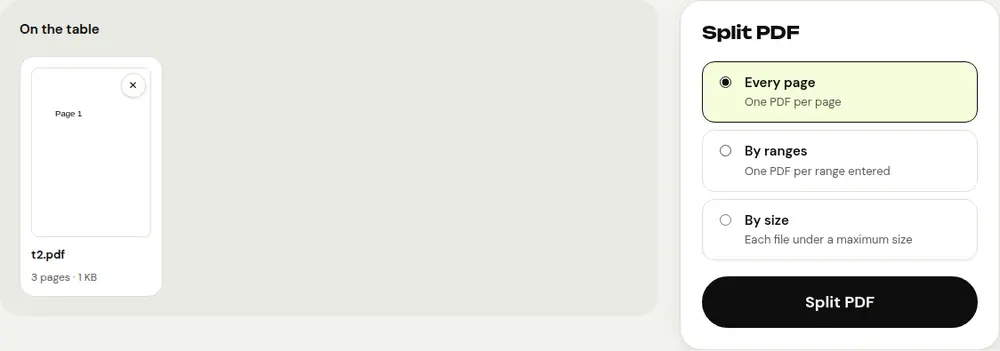
- Open “Split PDF” and select your document.
- Choose “Every page” to get one PDF per page, or “By ranges” to get one PDF per range you enter.
- In “By ranges” mode, fill in the “Ranges” field, for example “1-3, 4-6, 7-”.
- Click “Split PDF”, then download the result.
If there are several files, they’re bundled in a ZIP to unzip; each one’s name includes the pages it contains. If there’s only one, the PDF is downloaded directly.
Extract or delete a few pages
To send only the signed page of a contract or the statement for one specific month, open “Extract pages”, enter the pages under “Pages to extract” and click “Extract pages”.
To remove a blank page, an appendix or duplicate pages, open “Delete pages”, enter them under “Pages to delete” and click “Delete pages”. If you only want to keep one or two pages, “Extract pages” is simpler.
Working from thumbnails
If you don’t know the page numbers, “Organize PDF” shows thumbnails of the whole document. Delete unwanted pages with ✕, move them by dragging or with ◀ ▶, rotate them, then click “Save PDF”.
In all these tools, pages are copied as they are, with no loss of quality, and your original file stays intact. Everything happens in your browser: the document never leaves your device.
Frequently asked questions
What’s the difference between “Extract pages” and “Split PDF”?
“Extract pages” creates a single PDF with the pages you choose. “Split PDF” creates several separate files, bundled in a ZIP.
Is page quality preserved?
Yes. Pages are copied as they are, with no recompression or conversion to images.
My PDF is password protected. What should I do?
First remove the protection with the “Unlock PDF” tool if you know the password, then separate the pages.
More guides
- How to reduce PDF size to send by email
- How to sign a PDF on your phone
- How to turn photos into a single PDF
- How to edit a PDF for free, without Acrobat
- How to merge multiple PDFs into one file
- How to password protect a PDF
- How to make a scanned PDF searchable with OCR
- How to convert a PDF to Excel without retyping the numbers
- How to translate a PDF
- How to properly redact a PDF
- How to convert a PowerPoint to PDF to send it
- How to convert a PDF to an editable Word document
- How to convert a Word document to PDF
- How to fill in a PDF form without printing it
- How to reduce a PDF below a maximum size
- How to rotate a PDF and save the rotation
- How to convert a PDF to a JPG image
- How to add page numbers to a PDF
- How to add a watermark to a PDF
- Free Smallpdf alternative: an honest comparison
- Free iLovePDF alternative: an honest comparison
- Free alternative to Adobe Acrobat online