How to properly redact a PDF
Updated 10/14/2026
Before sending a statement, a contract or a supporting document, you often want to hide a name, an account number or an address. The usual reflex, drawing a black box, isn’t always enough: the text can stay in the file. This guide explains why, and how to hide information permanently.
Why a black box isn’t enough
In a PDF, the text and whatever is drawn on top of it are separate elements. When you add a black box with an ordinary editor or an annotation tool, it covers the text on screen, but the text often remains underneath.
- Simply copying and pasting the area can bring the hidden text back.
- The PDF reader’s search still finds the “hidden” word.
- The box can sometimes be moved or deleted by the person who receives the file.
Redacting means removing the information from the file, not just covering it.
What the “Redact PDF” tool does
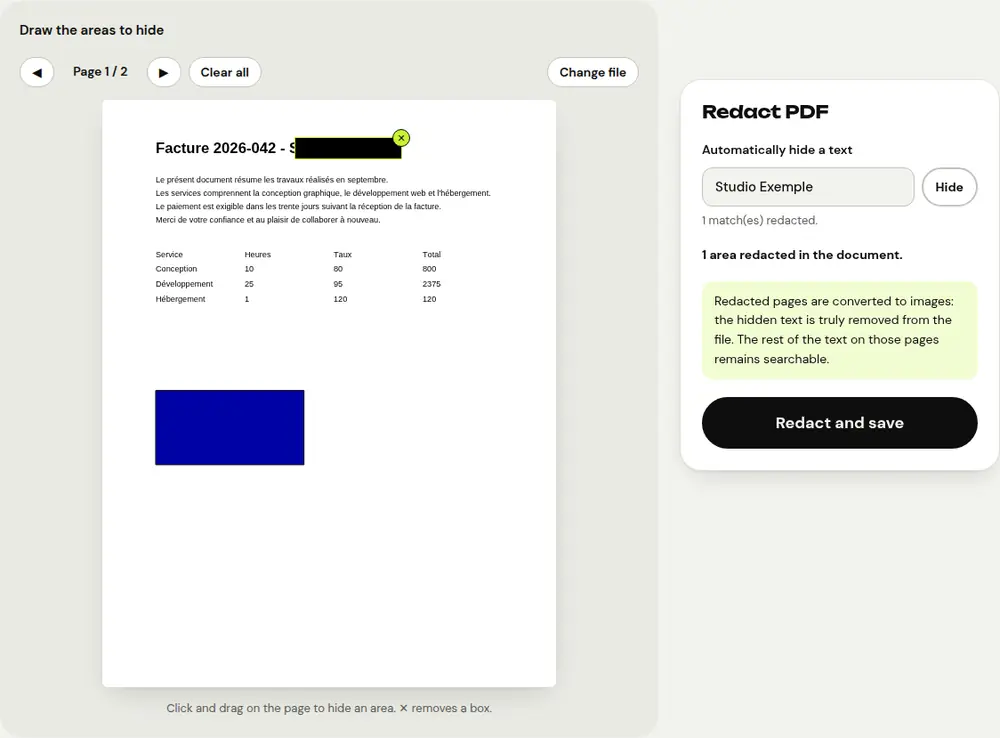
Every page where you’ve drawn at least one area is converted to an image, with the black boxes built in. The text under the boxes isn’t copied over: it’s truly gone from the file, along with anything drawn in that spot (a signature or a photo, for example).
The rest of the text on those pages is kept invisibly, so you can still search for a word. Pages without boxes are kept as they are.
Redact a PDF step by step
- Open the “Redact PDF” tool and select your document.
- Click and drag on the page to draw a box over each area to hide. Move from page to page with the ◀ ▶ buttons.
- To hide a name or number everywhere, type it in “Automatically hide a text” and click “Hide”: every occurrence is hidden, regardless of capitalization or accents.
- Check the areas: the ✕ button removes a box, “Clear all” removes them all.
- Click “Redact and save”, then download the redacted PDF.
The original isn’t modified: you get a new file whose name ends with “_redacted”.
Tips so you don’t miss anything
- In a scanned document, the automatic search finds nothing because there’s no real text: the tool shows “Text not found”. Draw the areas by hand instead.
- Go through every page before saving: a number written with spaces or dashes can slip past the search.
- Think of less visible information: headers, footers, signatures, file numbers.
- Open the resulting PDF and try to copy or search for the hidden text to make sure it’s really gone.
Redact, edit or protect?
These three needs look alike, but they’re not handled with the same tool:
- “Redact PDF”: permanently hide part of the content before sharing the document.
- “Edit PDF text”: correct or replace text, for example a wrong date or amount.
- “Protect PDF”: prevent the whole document from being opened without a password.
In every case, processing happens in your browser: your confidential documents never leave your device.
Frequently asked questions
Can redacted text be recovered?
No. Redacted pages are converted to images and the text under the boxes isn’t copied into the new file.
Is the rest of the document still searchable?
Yes. On redacted pages, the text that isn’t hidden is kept invisibly, and pages without boxes aren’t modified.
How do I hide every occurrence of a name?
Type it in “Automatically hide a text” and click “Hide”: every occurrence is hidden throughout the document.
More guides
- How to reduce PDF size to send by email
- How to sign a PDF on your phone
- How to turn photos into a single PDF
- How to edit a PDF for free, without Acrobat
- How to merge multiple PDFs into one file
- How to password protect a PDF
- How to make a scanned PDF searchable with OCR
- How to convert a PDF to Excel without retyping the numbers
- How to translate a PDF
- How to convert a PowerPoint to PDF to send it
- How to separate the pages of a PDF
- How to convert a PDF to an editable Word document
- How to convert a Word document to PDF
- How to fill in a PDF form without printing it
- How to reduce a PDF below a maximum size
- How to rotate a PDF and save the rotation
- How to convert a PDF to a JPG image
- How to add page numbers to a PDF
- How to add a watermark to a PDF
- Free Smallpdf alternative: an honest comparison
- Free iLovePDF alternative: an honest comparison
- Free alternative to Adobe Acrobat online