How to add a watermark to a PDF
Updated 10/14/2026
Sending a copy of your ID, a quote or a draft? A watermark makes it clear what the document is for and discourages reuse. Here’s how to add one in seconds, and how to set it so it stays visible without getting in the way of reading.
Add a watermark in 3 steps
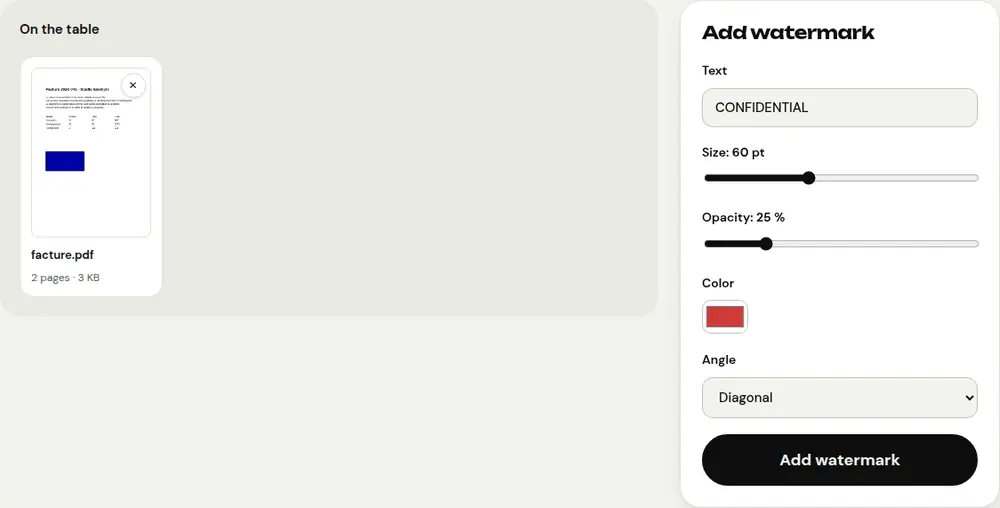
- Open “Add watermark” and select your PDF.
- Type your text (“CONFIDENTIAL” by default), then adjust the size, opacity, color and angle.
- Click “Add watermark” and download the document. The text appears on every page.
What text should you write?
- “CONFIDENTIAL”: for a document that mustn’t be shared.
- “COPY” or “DRAFT”: so a provisional version isn’t mistaken for the original.
- A specific purpose, such as “Only for the apartment rental – October 2026”: the best protection for a copy of an ID, because it can’t be reused for anything else.
Set the watermark properly
- Opacity between 15 and 30%: the document’s text stays perfectly readable.
- Diagonal angle: harder to erase or crop out.
- Gray or light red: visible without spoiling the printout.
Make the watermark harder to remove
A watermark added to a PDF can, in theory, be removed with specialized software. For a sensitive document, two options: protect the PDF with a password and editing restrictions, or convert it to images with “PDF to JPG” and put them back into a PDF. The watermark then becomes part of the image.
Frequently asked questions
Does the watermark appear on every page?
Yes, it’s added to the center of each page of the document.
Can I use my logo as a watermark?
The tool adds text. For a brand, simply write its name or your website address.
Is my document sent to a server?
No. The watermark is added in your browser: your file stays on your device.
More guides
- How to reduce PDF size to send by email
- How to sign a PDF on your phone
- How to turn photos into a single PDF
- How to edit a PDF for free, without Acrobat
- How to merge multiple PDFs into one file
- How to password protect a PDF
- How to make a scanned PDF searchable with OCR
- How to convert a PDF to Excel without retyping the numbers
- How to translate a PDF
- How to properly redact a PDF
- How to convert a PowerPoint to PDF to send it
- How to separate the pages of a PDF
- How to convert a PDF to an editable Word document
- How to convert a Word document to PDF
- How to fill in a PDF form without printing it
- How to reduce a PDF below a maximum size
- How to rotate a PDF and save the rotation
- How to convert a PDF to a JPG image
- How to add page numbers to a PDF
- Free Smallpdf alternative: an honest comparison
- Free iLovePDF alternative: an honest comparison
- Free alternative to Adobe Acrobat online