How to turn photos into a single PDF
Updated 10/14/2026
ID card, proof of address, a multi-page contract: you’re often asked for a PDF when all you have is photos taken with your phone. Here’s how to combine them into one clean, readable PDF that isn’t too large.
Take a good photo of the document
- Lay the document flat on a dark, plain surface: the edges stand out better.
- Hold the phone directly above it, parallel to the page, to avoid a skewed perspective.
- Avoid the flash, which creates glare, and use daylight when you can.
- Frame the page as closely as possible without cutting off the edges.
Option 1: a scanner look with Scan to PDF
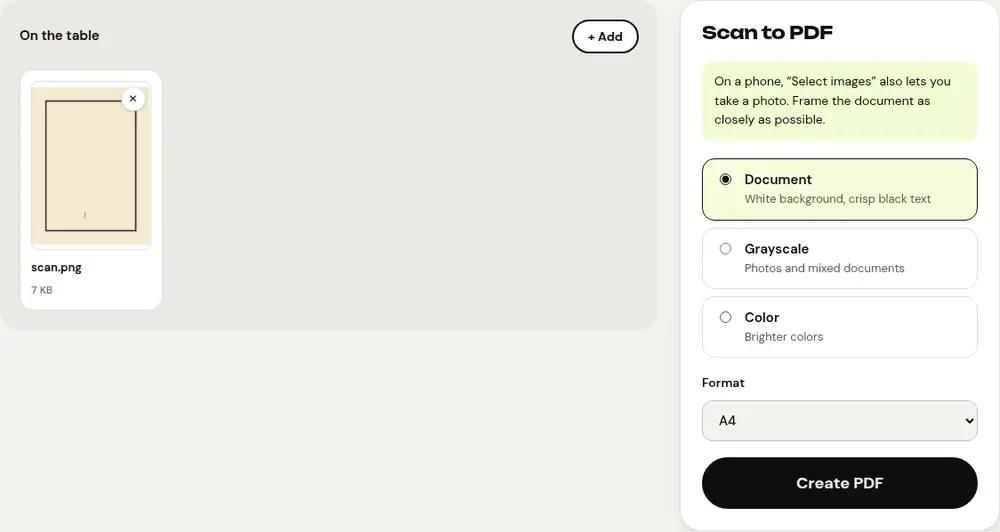
The “Scan to PDF” tool is made for photos of documents. It cleans up the image to get a result close to a real scanner.
- Open “Scan to PDF” and select your photos. On a phone, you can also take the photos directly.
- Choose the look: “Document” for a white background and crisp black text, “Grayscale” for mixed documents, or “Color”.
- Put the pages back in order with the arrows, then click “Create PDF” and download the result.
Option 2: keep the photos as they are with JPG to PDF
For photos, screenshots or images that are already clean, the “JPG to PDF” tool places them on A4 or US Letter pages, or pages sized to the image, with or without margins. Each image becomes a page, and photos taken in landscape are automatically placed in landscape orientation.
Shrink the PDF before sending it
Phone photos are large: a PDF of just a few pages can easily exceed 10 MB. Run the result through “Compress PDF” before emailing it or uploading it to a site that limits file size.
Make the text selectable
A PDF made from photos contains only images: you can’t search or copy its text. The “OCR PDF” tool recognizes the text right on your device and makes it selectable, while keeping the document’s appearance.
Frequently asked questions
Are my photos uploaded to a server?
No. The entire conversion is done by your browser, which matters for ID documents and personal papers.
How many photos can I put in a PDF?
As many as you like. Each photo becomes a page, in the order you choose.
What’s the difference between Scan to PDF and JPG to PDF?
“Scan to PDF” cleans up photos of documents for a scanned look. “JPG to PDF” keeps the images as they are.
More guides
- How to reduce PDF size to send by email
- How to sign a PDF on your phone
- How to edit a PDF for free, without Acrobat
- How to merge multiple PDFs into one file
- How to password protect a PDF
- How to make a scanned PDF searchable with OCR
- How to convert a PDF to Excel without retyping the numbers
- How to translate a PDF
- How to properly redact a PDF
- How to convert a PowerPoint to PDF to send it
- How to separate the pages of a PDF
- How to convert a PDF to an editable Word document
- How to convert a Word document to PDF
- How to fill in a PDF form without printing it
- How to reduce a PDF below a maximum size
- How to rotate a PDF and save the rotation
- How to convert a PDF to a JPG image
- How to add page numbers to a PDF
- How to add a watermark to a PDF
- Free Smallpdf alternative: an honest comparison
- Free iLovePDF alternative: an honest comparison
- Free alternative to Adobe Acrobat online