How to fill in a PDF form without printing it
Updated 10/14/2026
Printing a form, filling it in by hand, scanning it and sending it back: it takes time, and the result is often hard to read. With PDFRoll, you can fill in a PDF form right on screen, sign it and save it, without installing any software.
Fill in a form that has fields
Many official forms have areas designed to be filled in on screen. For those:
- Open “Fill in a PDF form” and select the form.
- PDFRoll shows the list of fields: text boxes, checkboxes, drop-down lists and option buttons.
- Fill in each field.
- Click “Save form”, then download the completed PDF.
Tick “Lock the answers (the form can no longer be edited)” if you don’t want the form to be editable anymore, for example before sending it to an organization.
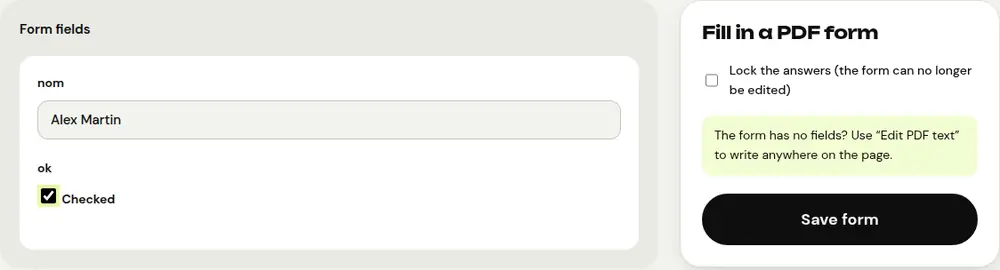
The form has no fields? Write directly on it
Some PDFs are plain documents with no fillable areas. PDFRoll lets you know. In that case:
- Open “Edit PDF text”.
- Add text where you need it, on each line to complete.
- Click “Save PDF”.
Sign the form
Once the form is filled in, open “Sign PDF” with the resulting file. Draw your signature with your finger or mouse, type your name or import an image of your signature, place it, then click “Sign PDF”.
Before you send it
- Open the final PDF to check that all your answers appear correctly.
- If the site where you need to upload it rejects the file because it’s too large, shrink it with “Compress PDF”.
- Keep a copy for your records.
Frequently asked questions
Can I fill in a PDF form on my phone?
Yes. PDFRoll works in your phone’s browser, with no app to install.
Are my answers sent to a server?
No. The form is filled in and saved on your device. That matters for forms with a file number, an address or health information.
What does the “Lock the answers (the form can no longer be edited)” option do?
It turns the fields into fixed text: the form looks the same everywhere and can no longer be edited. Keep an unlocked version if you think you may need to correct something.
Some characters aren’t saved. Why?
PDF form fields often use a limited font. If a character isn’t supported, PDFRoll tells you; replace it or write that text with “Edit PDF text”.
More guides
- How to reduce PDF size to send by email
- How to sign a PDF on your phone
- How to turn photos into a single PDF
- How to edit a PDF for free, without Acrobat
- How to merge multiple PDFs into one file
- How to password protect a PDF
- How to make a scanned PDF searchable with OCR
- How to convert a PDF to Excel without retyping the numbers
- How to translate a PDF
- How to properly redact a PDF
- How to convert a PowerPoint to PDF to send it
- How to separate the pages of a PDF
- How to convert a PDF to an editable Word document
- How to convert a Word document to PDF
- How to reduce a PDF below a maximum size
- How to rotate a PDF and save the rotation
- How to convert a PDF to a JPG image
- How to add page numbers to a PDF
- How to add a watermark to a PDF
- Free Smallpdf alternative: an honest comparison
- Free iLovePDF alternative: an honest comparison
- Free alternative to Adobe Acrobat online