How to merge multiple PDFs into one file
Updated 10/14/2026
A job application, a loan application or a tax return often calls for a single PDF containing every document. Here’s how to combine several files into one, in the right order, in seconds.
Merge PDFs step by step
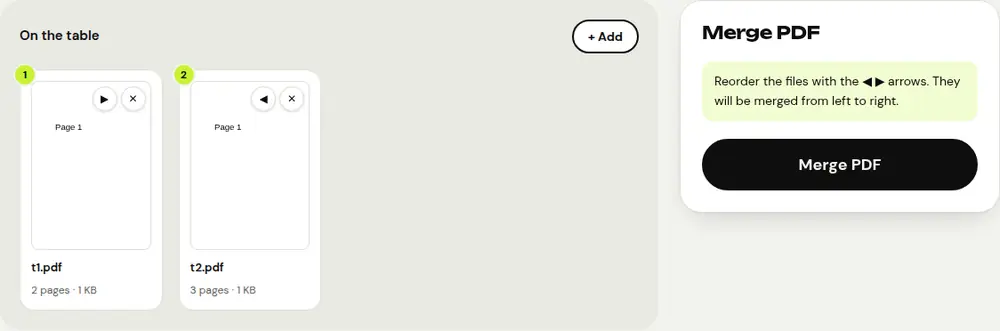
- Open the “Merge PDF” tool and select at least two files.
- Put them in the order you want with the arrows: they’ll be combined from left to right.
- Click “Merge PDF” and download the final document.
Pages are copied as they are, without recompression: text, images and links stay identical.
Rearrange pages after merging
Need to put a page in the middle of another document, or remove a duplicate page? The “Organize PDF” tool shows every page as a thumbnail: drag, rotate or delete them, then save.
Add photos or scans to the file
If some documents are only photos (ID, proof of address), turn them into PDFs first with “JPG to PDF” or “Scan to PDF”, then add them to the merge.
Final file too large?
A file that combines several scans can quickly exceed an email or online portal limit. Run the merged PDF through “Compress PDF” to shrink it before sending.
Frequently asked questions
How many PDFs can I merge?
As many as you like. The only limit is your device’s memory, because merging happens locally.
Can I merge a password-protected PDF?
Remove the protection first with “Unlock PDF” (you need to know the password), then merge.
Are my files uploaded to a server?
No, the merge is done by your browser. Your documents never leave your device.
More guides
- How to reduce PDF size to send by email
- How to sign a PDF on your phone
- How to turn photos into a single PDF
- How to edit a PDF for free, without Acrobat
- How to password protect a PDF
- How to make a scanned PDF searchable with OCR
- How to convert a PDF to Excel without retyping the numbers
- How to translate a PDF
- How to properly redact a PDF
- How to convert a PowerPoint to PDF to send it
- How to separate the pages of a PDF
- How to convert a PDF to an editable Word document
- How to convert a Word document to PDF
- How to fill in a PDF form without printing it
- How to reduce a PDF below a maximum size
- How to rotate a PDF and save the rotation
- How to convert a PDF to a JPG image
- How to add page numbers to a PDF
- How to add a watermark to a PDF
- Free Smallpdf alternative: an honest comparison
- Free iLovePDF alternative: an honest comparison
- Free alternative to Adobe Acrobat online