How to rotate a PDF and save the rotation
Updated 10/14/2026
An upside-down scan, a landscape page in the middle of a portrait document: it happens all the time, and rotating the page in your PDF reader doesn’t help, because the rotation is lost when you close it. This guide shows how to fix the orientation in the file itself, so everyone sees it the right way up.
Why the rotation isn’t saved
In most readers (your browser, Preview, Adobe Reader), the “Rotate” button only changes the view. The file itself isn’t modified: when you send it, the recipient still sees the page sideways.
To fix the document, you need to save a new version of the PDF whose pages have actually been turned. That’s what the “Rotate PDF” tool does.
Rotate every page in 3 steps
- Open “Rotate PDF” and select your file. You can add several at once.
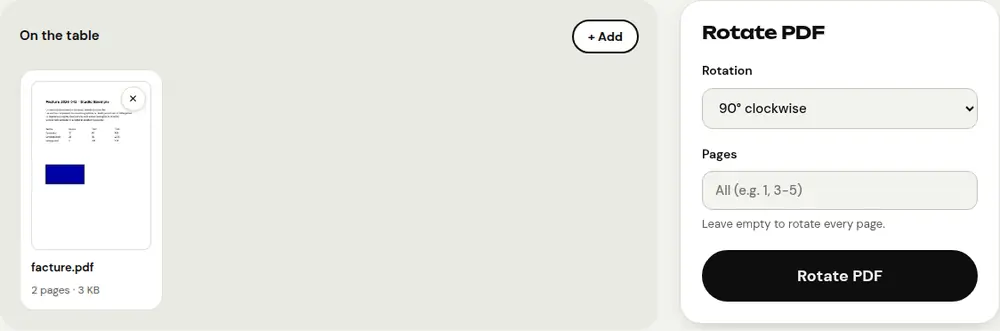
- Choose the rotation: 90° clockwise, 180° or 90° counterclockwise. Leave the “Pages” field empty to rotate the whole document.
- Click “Rotate PDF” and download the fixed file. The new orientation is saved in the PDF.
Rotate only some pages
If only one page is wrong, type its number in the “Pages” field, for example “3”, or several pages like “2, 5-7”. The other pages stay as they are.
Prefer to see the pages before deciding? “Organize PDF” shows a thumbnail of every page with ↺ and ↻ buttons: you turn exactly the ones that need it, and you can also reorder or delete pages.
Which rotation should you choose?
- The page lies on its side with the top on the left: 90° clockwise.
- The page lies on its side with the top on the right: 90° counterclockwise.
- The page is upside down: 180°.
If in doubt, just try: it only takes a few seconds and your original file is untouched.
What about a document scanned with your phone?
With “Scan to PDF”, hold your phone straight above the sheet and frame it tightly: the tool makes the background white and the text crisp black. If a page still comes out sideways, rotate it afterwards with “Rotate PDF”.
Frequently asked questions
Does rotating reduce the PDF’s quality?
No. The page is simply turned: text stays selectable and images keep their original quality.
Is my file sent to a server?
No. PDFRoll rotates the pages right in your browser: the document never leaves your device.
Can I rotate a PDF on iPhone or Android?
Yes. Open PDFRoll in your phone’s browser, pick the file from your documents and download the fixed version.
More guides
- How to reduce PDF size to send by email
- How to sign a PDF on your phone
- How to turn photos into a single PDF
- How to edit a PDF for free, without Acrobat
- How to merge multiple PDFs into one file
- How to password protect a PDF
- How to make a scanned PDF searchable with OCR
- How to convert a PDF to Excel without retyping the numbers
- How to translate a PDF
- How to properly redact a PDF
- How to convert a PowerPoint to PDF to send it
- How to separate the pages of a PDF
- How to convert a PDF to an editable Word document
- How to convert a Word document to PDF
- How to fill in a PDF form without printing it
- How to reduce a PDF below a maximum size
- How to convert a PDF to a JPG image
- How to add page numbers to a PDF
- How to add a watermark to a PDF
- Free Smallpdf alternative: an honest comparison
- Free iLovePDF alternative: an honest comparison
- Free alternative to Adobe Acrobat online