How to convert a PowerPoint to PDF to send it
Updated 10/14/2026
Sending a .pptx file means risking that the recipient doesn’t have PowerPoint, or that the layout changes when it’s opened. A PDF opens anywhere, on a computer or a phone. Here’s how to convert your presentation for free, and what to know about how it will look.
Why send a presentation as a PDF?
- The recipient can open it without PowerPoint, on any device.
- The file can’t be changed by accident.
- Many course platforms and document submission portals only accept PDFs.
- A presentation in PDF is easy to read through and print.
Convert a PowerPoint to PDF in 3 steps
- Open the “PowerPoint to PDF” tool and select your .pptx file.
- Click “Convert to PDF”.
- Download the PDF: it has the same name as your presentation.
Each slide becomes a page, at the presentation’s dimensions: a 16:9 presentation gives 16:9 pages. Older .ppt files aren’t accepted: save them as .pptx first from PowerPoint or LibreOffice Impress.
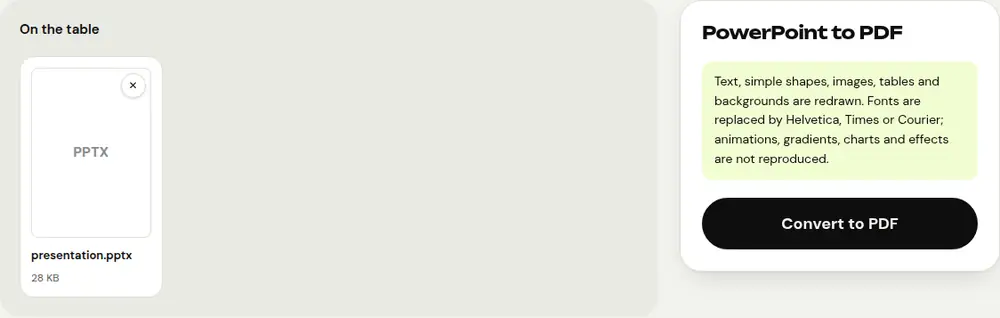
What is kept, and what isn’t
PDFRoll redraws your slides directly in the browser. The rendering is simplified compared with PowerPoint, and it’s best to know that before sending the file.
Carried over: text (as real text that can be selected and searched), simple shapes, images, tables and slide backgrounds.
Not reproduced: animations, gradients, charts and effects. Fonts are replaced by Helvetica, Times or Courier, which can slightly change the width of the text.
Tips before sending the PDF
- If a chart matters, copy it in PowerPoint and paste it as an image before converting: an image is carried over into the PDF.
- Look through the resulting PDF to make sure no text overflows its box.
- If the file is too large for an email because of the images, shrink it with “Compress PDF”.
- To send several presentations in a single file, convert them one at a time, then combine them with “Merge PDF”.
For a highly visual presentation where every detail matters, exporting to PDF from PowerPoint is still the best option. For sharing the content of a class, a meeting or a talk, PDFRoll’s conversion is enough in most cases.
What about privacy?
The conversion is done by your browser: your presentation is never sent to a server. That’s useful for internal slides, a project that hasn’t been announced yet or confidential figures.
Frequently asked questions
Will the PDF be identical to my presentation?
Text, simple shapes, images, tables and backgrounds are carried over. Fonts are replaced by Helvetica, Times or Courier, and animations, gradients, charts and effects are not reproduced.
Can you copy the text from the resulting PDF?
Yes. The slide text is written as real text: you can select it, copy it and search it for a word.
Can I convert a .ppt file?
No, only the .pptx format is accepted. Open the old file in PowerPoint or LibreOffice Impress and save it as .pptx.
More guides
- How to reduce PDF size to send by email
- How to sign a PDF on your phone
- How to turn photos into a single PDF
- How to edit a PDF for free, without Acrobat
- How to merge multiple PDFs into one file
- How to password protect a PDF
- How to make a scanned PDF searchable with OCR
- How to convert a PDF to Excel without retyping the numbers
- How to translate a PDF
- How to properly redact a PDF
- How to separate the pages of a PDF
- How to convert a PDF to an editable Word document
- How to convert a Word document to PDF
- How to fill in a PDF form without printing it
- How to reduce a PDF below a maximum size
- How to rotate a PDF and save the rotation
- How to convert a PDF to a JPG image
- How to add page numbers to a PDF
- How to add a watermark to a PDF
- Free Smallpdf alternative: an honest comparison
- Free iLovePDF alternative: an honest comparison
- Free alternative to Adobe Acrobat online