How to translate a PDF
Updated 10/14/2026
A contract in English, a letter in German: to understand a document you received in another language, there’s no need to copy and paste its pages one by one. Here’s how to translate an entire PDF, which browser to use, and what you get.
What you need
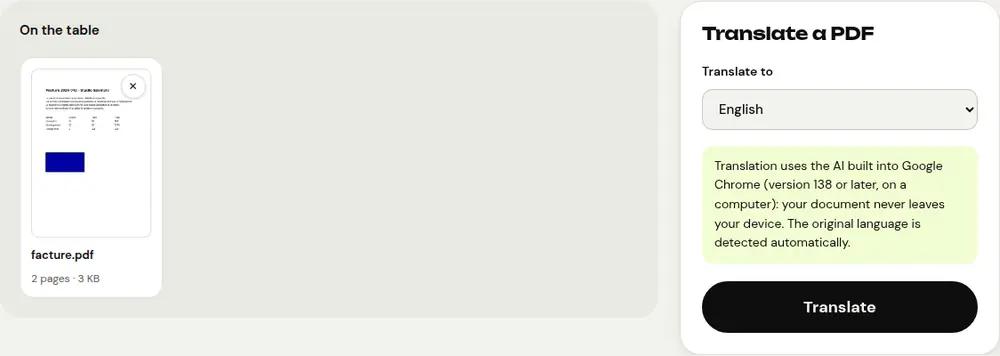
The “Translate a PDF” tool uses the translation AI built into Google Chrome, version 138 or later, on a computer. In another browser, or on a phone, PDFRoll asks you to open the site in Chrome.
The first time you use a language pair, for example English → French, Chrome may need to download its translation model. That requires an internet connection and a little disk space; the download progress is shown on screen.
Translate the PDF in 4 steps
- Open “Translate a PDF” in Chrome on your computer and select the document.
- Under “Translate to”, choose the target language. No need to specify the original language: it’s detected automatically from the beginning of the document.
- Click “Translate” and follow the progress, paragraph by paragraph.
- Download the Word document (.docx): its name ends with the code of the chosen language, for example “_fr”.
A preview of the translated text is also shown on screen. Sixteen target languages are available, including French, English, Spanish, German, Arabic, Chinese and Japanese.
What you get
- A fully editable Word document, so you can correct a term or rework a phrase.
- The PDF’s paragraphs and page breaks: each page starts on a new page of the document.
- For each paragraph, a single text size and style, taken from the beginning of the paragraph.
Images and the exact layout aren’t carried over: the tool is meant for understanding and reworking the content, not for producing an identical copy of the original.
When the translation won’t start
- “This PDF contains no text”: the document is a scan. Run it through “OCR PDF” first, then translate the result.
- “This document already seems to be in…”: the detected language is the one you chose. Check the “Translate to” menu.
- The language pair isn’t available: Chrome doesn’t support that combination, and PDFRoll tells you so.
- The model won’t download: check your connection and available disk space, then try again.
Privacy and good habits
The translation happens on your computer: Chrome’s model is downloaded once, then your document is translated locally, without being sent to an online service.
Machine translation can make mistakes: for a legal or official document, have it reviewed before using it. And if you only want the gist of a long document, “Summarize a PDF” is faster.
Frequently asked questions
Can I translate a PDF on my phone or with Firefox?
No: translation uses the AI built into Google Chrome 138 or later, which is only available on computers. Open PDFRoll in Chrome on a computer.
Is my document sent to a server?
No. Only Chrome’s translation model may be downloaded the first time; your document itself is translated on your device and never leaves it.
Can I get the translation as a PDF?
The tool produces a Word document (.docx). After reviewing it, you can convert it to PDF with “Word to PDF”.
More guides
- How to reduce PDF size to send by email
- How to sign a PDF on your phone
- How to turn photos into a single PDF
- How to edit a PDF for free, without Acrobat
- How to merge multiple PDFs into one file
- How to password protect a PDF
- How to make a scanned PDF searchable with OCR
- How to convert a PDF to Excel without retyping the numbers
- How to properly redact a PDF
- How to convert a PowerPoint to PDF to send it
- How to separate the pages of a PDF
- How to convert a PDF to an editable Word document
- How to convert a Word document to PDF
- How to fill in a PDF form without printing it
- How to reduce a PDF below a maximum size
- How to rotate a PDF and save the rotation
- How to convert a PDF to a JPG image
- How to add page numbers to a PDF
- How to add a watermark to a PDF
- Free Smallpdf alternative: an honest comparison
- Free iLovePDF alternative: an honest comparison
- Free alternative to Adobe Acrobat online