How to convert a PDF to an editable Word document
Updated 10/14/2026
A PDF is made to be read, not edited. To rework some text, update a résumé or reuse a report, the easiest option is to convert it to a Word document. Here’s how to do it with PDFRoll, without installing any software and without uploading your file to a server.
Convert a PDF to Word in 3 steps
- Open “PDF to Word” and select your PDF.
- Click “Convert to Word”.
- Download the .docx file, then open it in Word, LibreOffice, Google Docs or Pages.
The conversion happens in your browser: your document never leaves your computer or phone. That matters for a contract, a pay slip or any personal document.
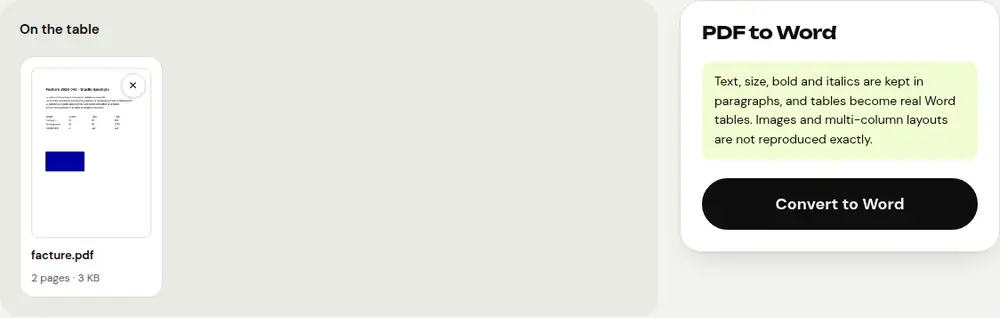
What gets preserved
- The text, split into paragraphs you can edit as usual.
- Font size, bold and italics.
- Tables, which become real Word tables.
Images and multi-column layouts aren’t reproduced exactly. For a very visual document, such as a brochure or a poster, it’s often better to edit the PDF directly (see below).
What if my PDF is scanned?
A scanned or photographed PDF contains no text, only images of pages. In that case, PDFRoll lets you know and can’t convert it directly.
- First run the document through “OCR PDF” to recognize the text.
- Then open the resulting PDF in “PDF to Word”.
Check the result: text recognition is reliable on a clean document, but it can make mistakes on a blurry photo, handwriting or crumpled paper.
Just a small fix? No need for Word
To change a date, a name or an amount, you don’t need to go through Word. Open “Edit PDF text”, click the text you want to change, retype it, then click “Save PDF”. The layout stays intact.
Going back to PDF after editing
Once you’ve edited the document in Word, you can save it as a PDF from Word itself, or use “Word to PDF” on PDFRoll if you don’t have Word handy.
Frequently asked questions
Is the conversion free?
Yes, with no limit on the number of files and no sign-up.
Is my file uploaded to a server?
No. The conversion happens entirely in your browser; no one else sees your document.
Why doesn’t my Word document look exactly like the PDF?
A PDF places every element at a fixed position, whereas a Word document is organized into paragraphs. Text, styles and tables carry over, but images and complex layouts may differ.
PDFRoll says the PDF contains no text. What should I do?
It’s a scanned document. Run it through “OCR PDF” first, then convert the result with “PDF to Word”.
More guides
- How to reduce PDF size to send by email
- How to sign a PDF on your phone
- How to turn photos into a single PDF
- How to edit a PDF for free, without Acrobat
- How to merge multiple PDFs into one file
- How to password protect a PDF
- How to make a scanned PDF searchable with OCR
- How to convert a PDF to Excel without retyping the numbers
- How to translate a PDF
- How to properly redact a PDF
- How to convert a PowerPoint to PDF to send it
- How to separate the pages of a PDF
- How to convert a Word document to PDF
- How to fill in a PDF form without printing it
- How to reduce a PDF below a maximum size
- How to rotate a PDF and save the rotation
- How to convert a PDF to a JPG image
- How to add page numbers to a PDF
- How to add a watermark to a PDF
- Free Smallpdf alternative: an honest comparison
- Free iLovePDF alternative: an honest comparison
- Free alternative to Adobe Acrobat online