How to add page numbers to a PDF
Updated 10/14/2026
An application file, a thesis or a report without page numbers is hard to follow, especially once printed. Adding numbering to an existing PDF takes just a few seconds, without going back to Word.
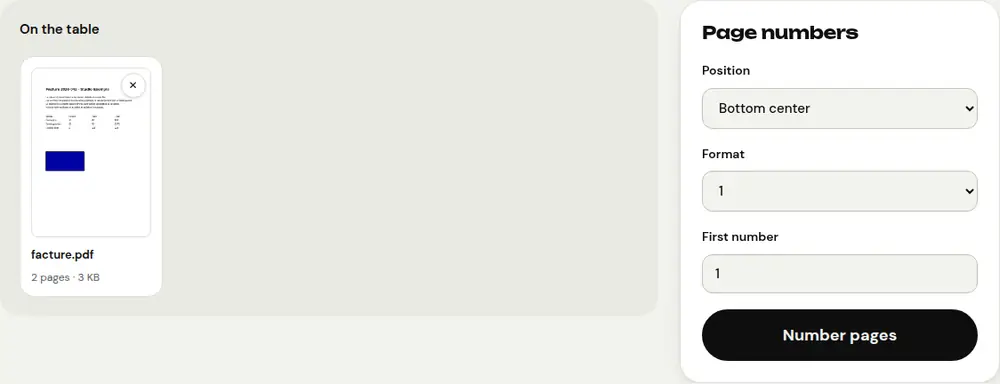
Number the pages in 3 steps
- Open “Page numbers” and select your PDF.
- Choose the position (bottom center, bottom right, top…), the format and the first number.
- Click “Number pages” and download the numbered document.
Which format should you choose?
- “1”: the most discreet, ideal for a book or a thesis.
- “1 / 10”: handy for a document you’ll print, you see right away if a page is missing.
- “Page 1 of 10”: the clearest for a contract or an official file.
Start at another number
The “First number” field lets you continue a numbering: if your PDF is the second part of a document that ended on page 24, enter 25.
Does your document have a cover page that shouldn’t be numbered? The simplest way is to number the body separately, then join the cover and the numbered pages with “Merge PDF”.
Prepare the document before numbering it
Number last. If you still need to add, remove or reorder pages, do it first with “Merge PDF” or “Organize PDF”. Otherwise the numbering won’t match anymore.
Frequently asked questions
Will the numbers cover my text?
They’re placed in the margin, about one centimeter from the edge. If your document has almost no margin, choose another position, for example at the top.
Can I remove the numbers later?
Once added, the numbers are part of the file. Keep a copy of your original PDF: the tool doesn’t change it.
Does my document stay private?
Yes. Numbering happens in your browser, without sending the file to a server.
More guides
- How to reduce PDF size to send by email
- How to sign a PDF on your phone
- How to turn photos into a single PDF
- How to edit a PDF for free, without Acrobat
- How to merge multiple PDFs into one file
- How to password protect a PDF
- How to make a scanned PDF searchable with OCR
- How to convert a PDF to Excel without retyping the numbers
- How to translate a PDF
- How to properly redact a PDF
- How to convert a PowerPoint to PDF to send it
- How to separate the pages of a PDF
- How to convert a PDF to an editable Word document
- How to convert a Word document to PDF
- How to fill in a PDF form without printing it
- How to reduce a PDF below a maximum size
- How to rotate a PDF and save the rotation
- How to convert a PDF to a JPG image
- How to add a watermark to a PDF
- Free Smallpdf alternative: an honest comparison
- Free iLovePDF alternative: an honest comparison
- Free alternative to Adobe Acrobat online