How to reduce a PDF below a maximum size
Updated 10/14/2026
Government forms, job applications, school registrations: many websites limit PDFs to 1 MB, 500 KB or even 100 KB. If your file is rejected, here’s how to get it under the limit, starting with the simplest method.
1. Compress the PDF
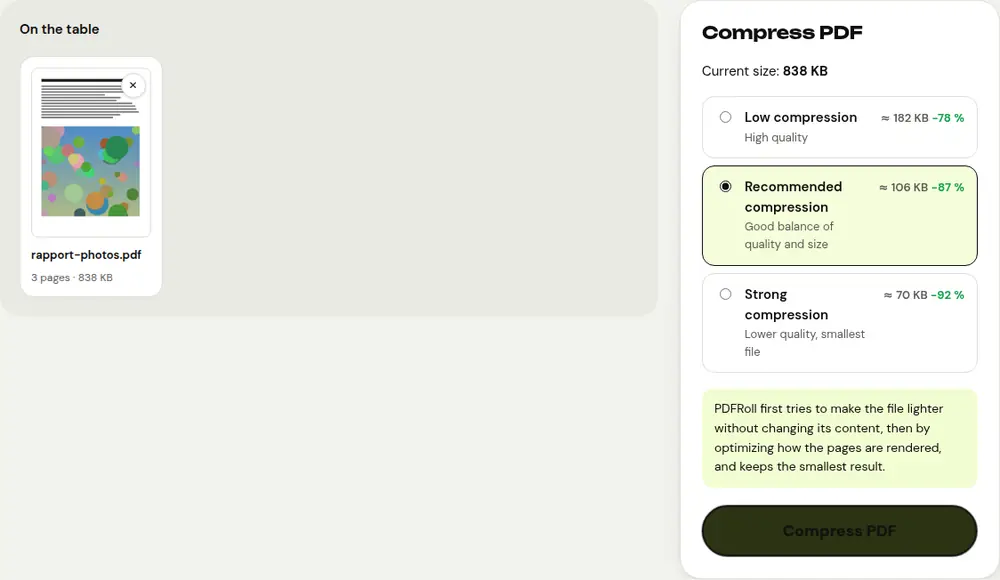
- Open “Compress PDF” and select your file.
- PDFRoll shows the current size and, for most documents, estimates the size you’ll get with each level.
- Choose the level whose estimate is under the required limit.
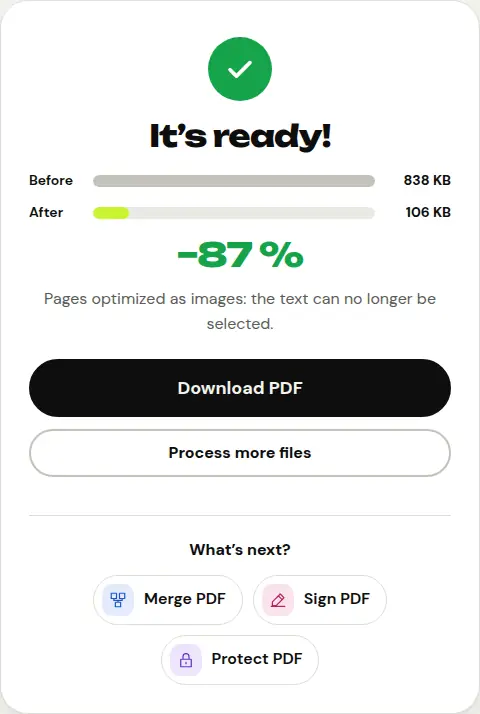
- Click “Compress PDF”, then download the result.
Start with “Recommended compression”. If that isn’t enough, try “Strong compression”: the file will be much smaller, but images will be less sharp. Check that the text is still readable before sending it.
2. Remove unnecessary pages
A blank page, an appendix or an empty back side adds weight for nothing. Remove them with “Delete pages”, then compress again if needed. On a scanned document, every page counts.
3. Split the PDF into files under the limit
If the website accepts several files but limits the size of each one, use “Split PDF” in “By size” mode:
- Open “Split PDF” and select your file.
- Choose “By size”.
- In “Maximum size”, enter the website’s limit, for example 1 MB or 500 KB.
- Click “Split PDF”: PDFRoll groups the pages into files that stay under that limit.
If a single page is already over the limit, it stays alone in its own file and PDFRoll lets you know: compress the PDF first, then split it.
For photos of documents: use “Scan to PDF”
A photo taken with a phone often weighs several megabytes. If your PDF is made of photos, recreate it with “Scan to PDF” in “Document” mode: the photos are resized and cleaned up (white background, crisp black text), which gives a much lighter file. Frame the document as tightly as possible when you take the photo.
Frequently asked questions
How do I find out the size of my PDF?
“Compress PDF” shows it as soon as you select the file. On a computer, it also appears in the file’s properties.
Will compression damage my document?
The text stays sharp. It’s mostly images and scanned pages that lose a little sharpness, especially with “Strong compression”.
The website requires less than 100 KB and I can’t get there. What can I do?
Combine the methods: remove unnecessary pages, use “Strong compression”, and if the website accepts several files, split the PDF in “By size” mode.
Is my file uploaded online to be compressed?
No. Compression and splitting happen in your browser; your documents stay on your device.
More guides
- How to reduce PDF size to send by email
- How to sign a PDF on your phone
- How to turn photos into a single PDF
- How to edit a PDF for free, without Acrobat
- How to merge multiple PDFs into one file
- How to password protect a PDF
- How to make a scanned PDF searchable with OCR
- How to convert a PDF to Excel without retyping the numbers
- How to translate a PDF
- How to properly redact a PDF
- How to convert a PowerPoint to PDF to send it
- How to separate the pages of a PDF
- How to convert a PDF to an editable Word document
- How to convert a Word document to PDF
- How to fill in a PDF form without printing it
- How to rotate a PDF and save the rotation
- How to convert a PDF to a JPG image
- How to add page numbers to a PDF
- How to add a watermark to a PDF
- Free Smallpdf alternative: an honest comparison
- Free iLovePDF alternative: an honest comparison
- Free alternative to Adobe Acrobat online