How to convert a PDF to a JPG image
Updated 10/14/2026
A social network, a messaging app or a website won’t accept your PDF? A JPG image works everywhere. Here’s how to turn one or more pages into sharp images, and which quality to pick for each use.
Convert a PDF to JPG in 3 steps
- Open “PDF to JPG” and select your file.
- Choose the quality, then, if you only want some pages, enter them in the “Pages” field (for example “1” or “2-4”). Leave it empty to convert the whole document.
- Click “Convert to JPG”. A single page gives one image; several pages are bundled in a ZIP file, one image per page.
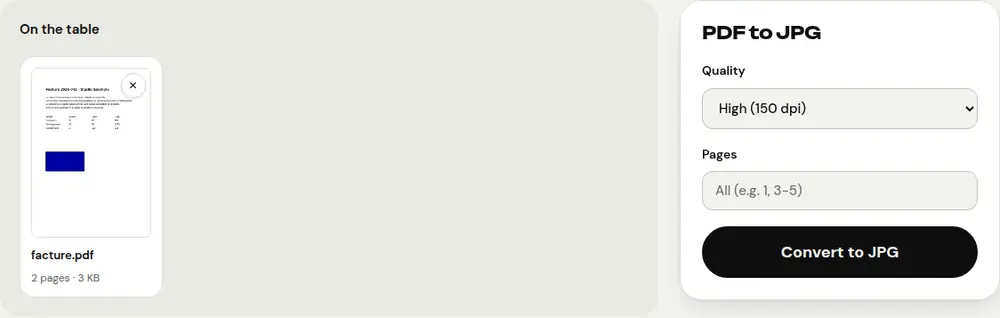
Which quality should you choose?
- Normal (100 dpi): for a preview, a message or a social media post. Light files.
- High (150 dpi): the right balance for most uses, including presentations.
- Very high (300 dpi): for printing or zooming into fine details. Images are heavier.
Get a single page
For one specific page, just type its number in the “Pages” field. Use the number shown by your PDF reader, not the one printed at the bottom of the page, which may differ.
Want to keep that page as a PDF rather than an image? Use “Extract pages”: the text stays selectable.
The other way round: images to PDF
To gather photos or screenshots into a single PDF, use “JPG to PDF”. You choose the order, the page size and the margins.
Frequently asked questions
Will the text in the image be editable?
No. A JPG is a picture of the page: the text can no longer be selected. If you need to change the content, convert the PDF to Word instead.
Are my documents uploaded?
No. The conversion runs in your browser, on your device. No file is sent to a server.
Can I get a PNG instead of a JPG?
PDFRoll creates JPG images, which are lighter and accepted everywhere. For most uses, the difference isn’t visible.
More guides
- How to reduce PDF size to send by email
- How to sign a PDF on your phone
- How to turn photos into a single PDF
- How to edit a PDF for free, without Acrobat
- How to merge multiple PDFs into one file
- How to password protect a PDF
- How to make a scanned PDF searchable with OCR
- How to convert a PDF to Excel without retyping the numbers
- How to translate a PDF
- How to properly redact a PDF
- How to convert a PowerPoint to PDF to send it
- How to separate the pages of a PDF
- How to convert a PDF to an editable Word document
- How to convert a Word document to PDF
- How to fill in a PDF form without printing it
- How to reduce a PDF below a maximum size
- How to rotate a PDF and save the rotation
- How to add page numbers to a PDF
- How to add a watermark to a PDF
- Free Smallpdf alternative: an honest comparison
- Free iLovePDF alternative: an honest comparison
- Free alternative to Adobe Acrobat online