How to password protect a PDF
Updated 10/14/2026
Emailing a pay slip, a statement or a medical record isn’t trivial: an attachment can be forwarded or sent to the wrong person. A password ensures that only people who know it can open the document.
Add a password to a PDF
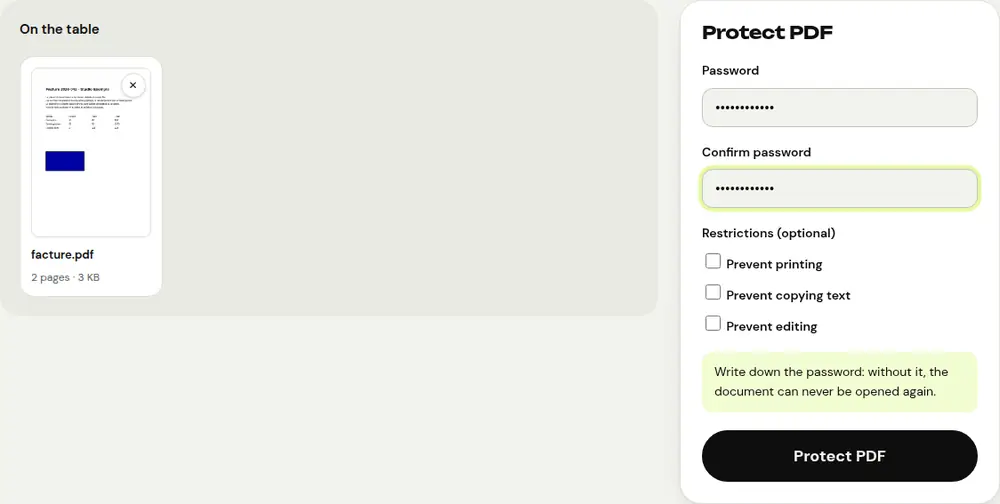
- Open the “Protect PDF” tool and select the document.
- Enter the password, then confirm it.
- If you like, check restrictions: prevent printing, copying text or making changes.
- Click “Protect PDF”, then download the encrypted file.
The document is encrypted with 256-bit AES, the highest standard level of encryption for PDFs.
Choose a strong password
- At least 12 characters, mixing words, numbers and symbols.
- Never the same password as your email or bank account.
- Share it through a different channel than the document: by text message or phone call if the PDF is sent by email.
- Keep it somewhere safe: without it, the document can no longer be opened, not even by you.
Remove password protection from a PDF
A PDF that asks for a password every time you open it quickly becomes a hassle for your own records. The “Unlock PDF” tool removes the protection if you know the password. Simple printing or copying restrictions are removed without a password. Only use it on your own documents or with the author’s permission.
Hide information instead of protecting everything
Sometimes the document can be shared, but part of it must stay secret: an account number, an address, a salary. The “Redact PDF” tool permanently masks those areas: the information is removed from the file, not just hidden under a black rectangle.
Frequently asked questions
Is my password sent anywhere?
No. Encryption is done by your browser: neither the document nor the password leaves your device.
I forgot my PDF password. What can I do?
Without the open password, an encrypted PDF can’t be unlocked: that’s the whole point of encryption. If possible, find an unprotected copy of the document.
Does the recipient need special software?
No. All common PDF readers (browser, Adobe Reader, Preview on Mac) ask for the password when opening the file.
More guides
- How to reduce PDF size to send by email
- How to sign a PDF on your phone
- How to turn photos into a single PDF
- How to edit a PDF for free, without Acrobat
- How to merge multiple PDFs into one file
- How to make a scanned PDF searchable with OCR
- How to convert a PDF to Excel without retyping the numbers
- How to translate a PDF
- How to properly redact a PDF
- How to convert a PowerPoint to PDF to send it
- How to separate the pages of a PDF
- How to convert a PDF to an editable Word document
- How to convert a Word document to PDF
- How to fill in a PDF form without printing it
- How to reduce a PDF below a maximum size
- How to rotate a PDF and save the rotation
- How to convert a PDF to a JPG image
- How to add page numbers to a PDF
- How to add a watermark to a PDF
- Free Smallpdf alternative: an honest comparison
- Free iLovePDF alternative: an honest comparison
- Free alternative to Adobe Acrobat online