How to make a scanned PDF searchable with OCR
Updated 10/14/2026
You press Ctrl+F in a PDF and nothing happens? The document is probably a scan: each page is just a picture, with no text to search or copy. Optical character recognition (OCR) reads the text on each page to fix that.
How can you tell if a PDF is a scan?
Try selecting a sentence with your mouse, or searching for a word with Ctrl+F (Cmd+F on a Mac). If nothing gets selected and the search finds nothing even though the word is clearly visible, the page is an image.
That’s the case for documents run through a scanner and for photos turned into a PDF.
Make the PDF searchable in 4 steps
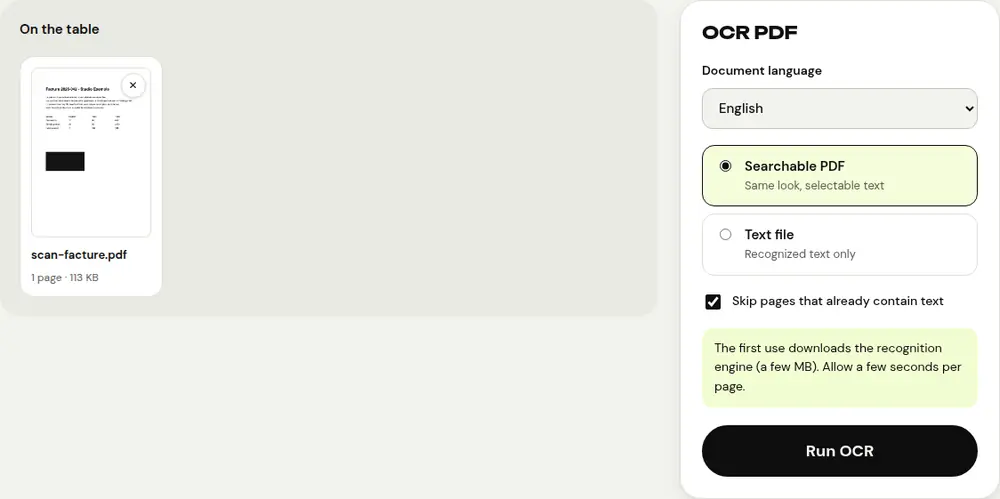
- Open the “OCR PDF” tool and select your scanned PDF.
- Under “Document language”, choose the language of the text. “French + English” works for documents that mix the two.
- Choose the output: “Searchable PDF” to keep the same look with selectable text, or “Text file” to get only the recognized text, page by page, in a .txt file.
- Click “Run OCR”, then download the file. Its name ends with “_ocr”.
With “Searchable PDF”, the page images don’t change: the recognized text is placed invisibly under each line, ready to be searched or copied.
Getting good recognition
- Start from a sharp, high-contrast scan: blurry or faint text is poorly recognized.
- Turn upside-down pages the right way up with “Rotate PDF” before running OCR.
- Choose the right language: it greatly improves recognition of accented characters.
- Leave the “Skip pages that already contain text” option checked: in a mixed document, only the scanned pages are processed.
- Double-check important numbers and names: OCR can make mistakes, and it’s designed for printed text rather than handwriting.
If no text is recognized, PDFRoll tells you: check the language you chose and the quality of the scan.
Before and after OCR
Starting from photos taken with your phone? Begin with “Scan to PDF”, which whitens the background and sharpens the text, then run the resulting PDF through “OCR PDF”.
Scans are often large. If the file needs to be smaller, compress it before OCR, preferably with “Recommended compression”: compressing afterwards could turn the pages back into images and erase the recognized text, and compressing too strongly before OCR makes the characters less sharp, so they’re recognized less well. Once the text is recognized, “PDF to Word” lets you rework it in an editable document.
What about privacy?
Recognition is done by your browser. The first time, the recognition engine is downloaded (a few MB), but your document itself never leaves your device. After that, expect a few seconds per page, depending on how powerful your device is.
Frequently asked questions
Does OCR change how my PDF looks?
No. With “Searchable PDF”, the pages stay identical: the recognized text is added invisibly so you can select and search it.
Which languages are recognized?
French, English, Spanish, German, Italian, Portuguese, Dutch, Chinese, Japanese and Hindi, plus “French + English” for bilingual documents.
Can I run OCR on a photo?
Yes, by first turning it into a PDF with “Scan to PDF”, then running that PDF through “OCR PDF”.
More guides
- How to reduce PDF size to send by email
- How to sign a PDF on your phone
- How to turn photos into a single PDF
- How to edit a PDF for free, without Acrobat
- How to merge multiple PDFs into one file
- How to password protect a PDF
- How to convert a PDF to Excel without retyping the numbers
- How to translate a PDF
- How to properly redact a PDF
- How to convert a PowerPoint to PDF to send it
- How to separate the pages of a PDF
- How to convert a PDF to an editable Word document
- How to convert a Word document to PDF
- How to fill in a PDF form without printing it
- How to reduce a PDF below a maximum size
- How to rotate a PDF and save the rotation
- How to convert a PDF to a JPG image
- How to add page numbers to a PDF
- How to add a watermark to a PDF
- Free Smallpdf alternative: an honest comparison
- Free iLovePDF alternative: an honest comparison
- Free alternative to Adobe Acrobat online