How to convert a PDF to Excel without retyping the numbers
Updated 10/14/2026
Copying the lines of a statement or invoice by hand is slow and error-prone. If the PDF contains real text, its tables can be pulled straight into a spreadsheet, with numbers ready for your sums and formulas. Here’s how to do it, and how to check the result.
Convert the PDF to Excel in 4 steps
- Open the “PDF to Excel” tool and select your PDF.
- Choose “One sheet per page” to get each page in a separate tab (“Page 1”, “Page 2”…), or “Everything in one sheet” to put the pages one after another in a single tab, separated by an empty row.
- Click “Convert to Excel”.
- Download the .xlsx file and open it in Excel, LibreOffice Calc or Google Sheets.
PDFRoll tells you how many cells were extracted.
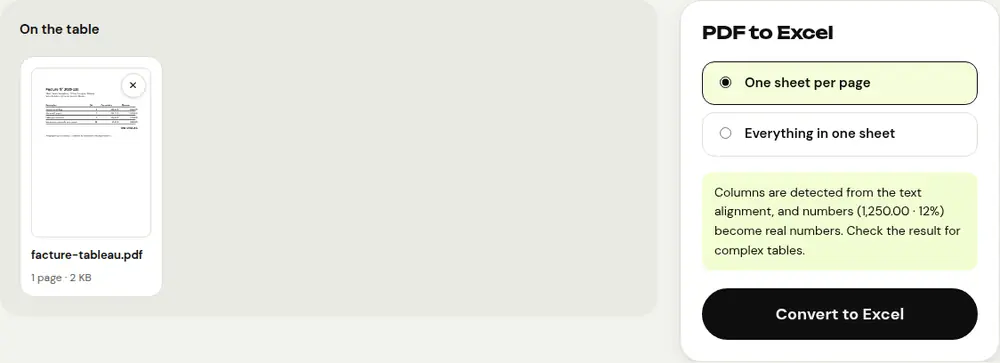
How columns and numbers are detected
A PDF doesn’t contain a real table: only pieces of text placed on the page. PDFRoll groups the ones at the same height into rows, then finds the columns from how the text is aligned. Rows that contain only one block, like a heading or a paragraph, are placed in column A.
- Amounts written French-style (“1 250,00”, “1.250,00”) or English-style (“1,250.00”) become real numbers.
- Currency symbols like €, $ or £ are removed: “3,50 €” becomes 3.5.
- Percentages are converted to fractions: “12 %” becomes 0.12. Apply Excel’s Percentage format to display it as a % again.
Check the result
Conversion works best on simple, well-aligned tables. For complex tables, take a few minutes to check:
- shifted columns, when a cell is very long or poorly aligned;
- dates, which stay as text;
- negative amounts written in parentheses, which also stay as text;
- the total: compare a sum calculated in Excel with the one in the PDF.
Slanted or vertical text isn’t carried over.
What if the PDF is a scan?
A scan only contains images, so PDFRoll tells you there are no tables to extract. First run the document through “OCR PDF” with “Searchable PDF”, then convert the result to Excel. Because the recognized text is added line by line, columns may be less cleanly separated, and OCR can misread a digit: double-check important amounts.
After the conversion
Once your data is corrected, “Excel to PDF” lets you go the other way to send a clean table. The conversion happens in your browser: your statements and invoices never leave your device.
Frequently asked questions
Can the numbers be used in formulas?
Yes. Amounts like “1 250,00”, “3,50 €” or “12 %” are converted into numbers you can add up. Dates, however, stay as text.
Can I put all the pages in a single sheet?
Yes, choose “Everything in one sheet”: the pages are placed one after another in the “Data” tab, separated by an empty row.
Does the file work with Google Sheets?
Yes. Upload the .xlsx file to Google Drive, then open it with Google Sheets.
More guides
- How to reduce PDF size to send by email
- How to sign a PDF on your phone
- How to turn photos into a single PDF
- How to edit a PDF for free, without Acrobat
- How to merge multiple PDFs into one file
- How to password protect a PDF
- How to make a scanned PDF searchable with OCR
- How to translate a PDF
- How to properly redact a PDF
- How to convert a PowerPoint to PDF to send it
- How to separate the pages of a PDF
- How to convert a PDF to an editable Word document
- How to convert a Word document to PDF
- How to fill in a PDF form without printing it
- How to reduce a PDF below a maximum size
- How to rotate a PDF and save the rotation
- How to convert a PDF to a JPG image
- How to add page numbers to a PDF
- How to add a watermark to a PDF
- Free Smallpdf alternative: an honest comparison
- Free iLovePDF alternative: an honest comparison
- Free alternative to Adobe Acrobat online